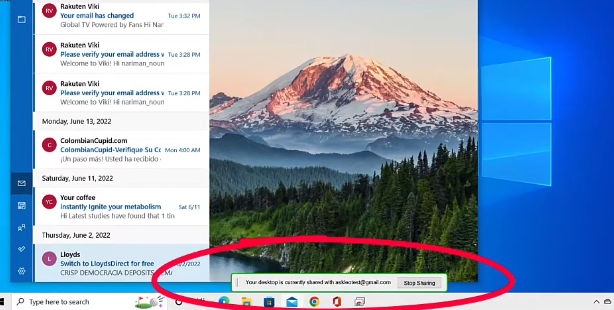
PLEASE FOLLOW THESE NEXT STEPS
THIS SOFTWARE IS NECESSARY TO GET REMOTE ASSISTANCE.
Guide to using Chrome Remote Desktop Free
This is a step-by-step guide on how to use Remote Desktop for remote assistance. This extension is required in Google Chrome. If you are not using Chrome, please do a search for “Google Chrome”, download and install it on your computer.
NOTE: A Gmail account is required to use this software and get remote assistance.
STEPS
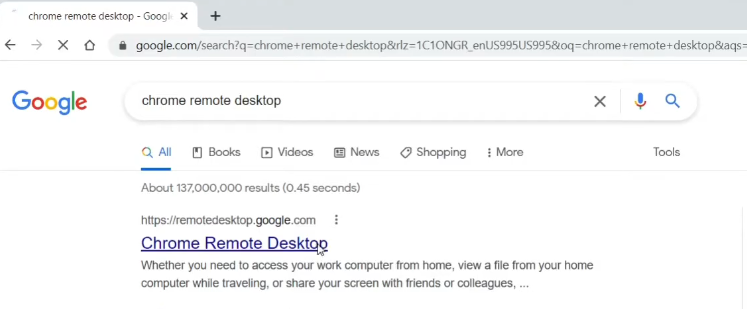
Search for Chrome Remote Desktop and click on the link
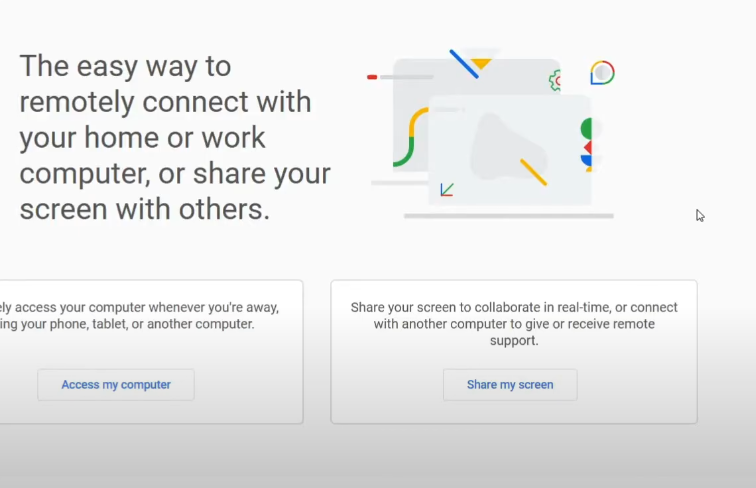
Click on Share my screen
Click on Install
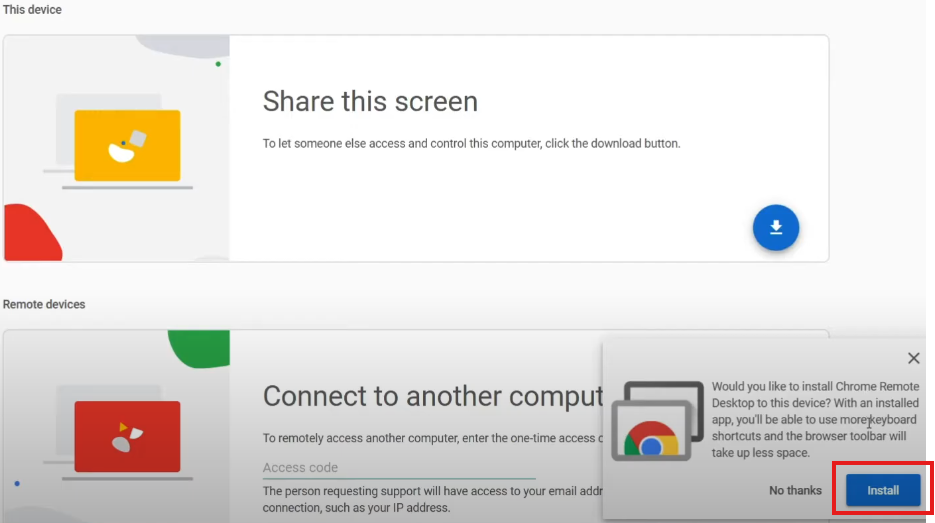
Click Install on the 2nd message
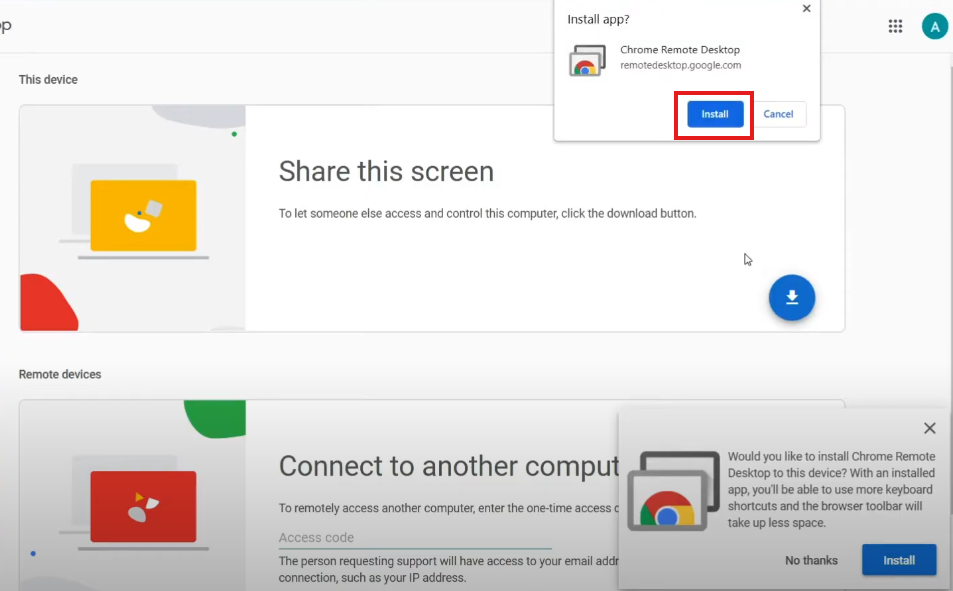
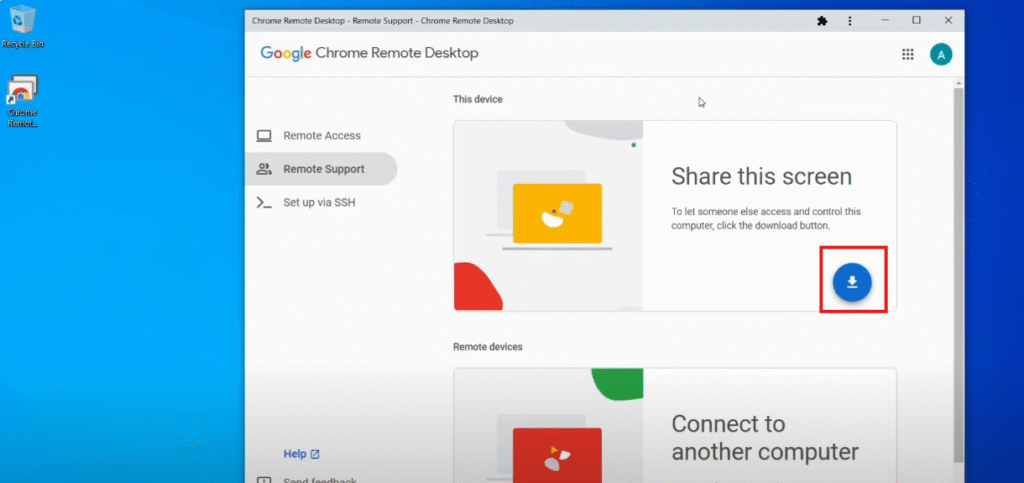
Click on the download arrow
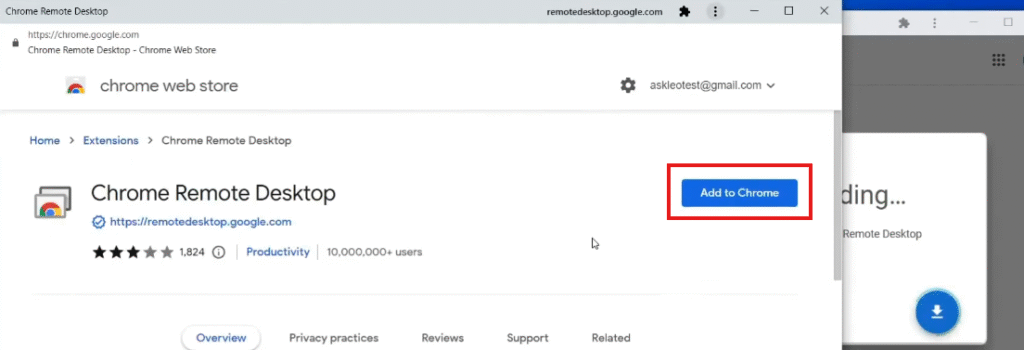
Click Add to Chrome
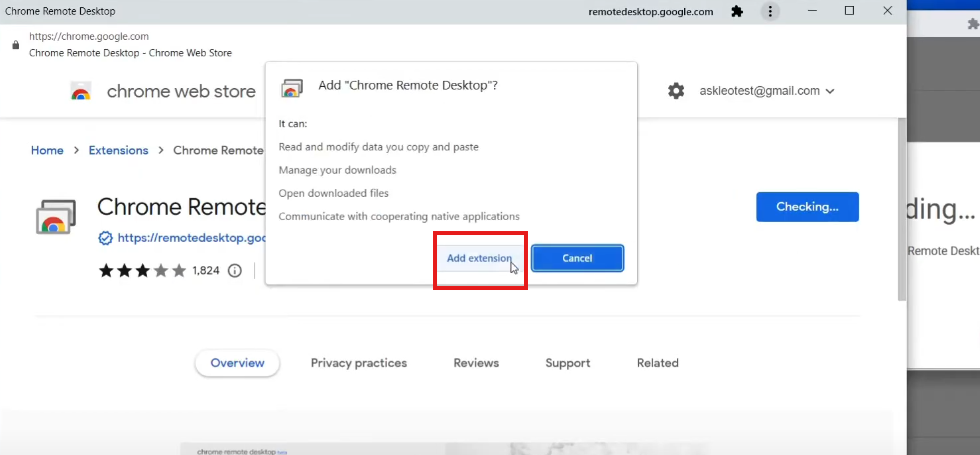
Click Add Extension to confirm
The remote desktop software is now installed and a new icon will appear on the desktop of your computer.
Double click the icon at any time to start a new session.
USAGE
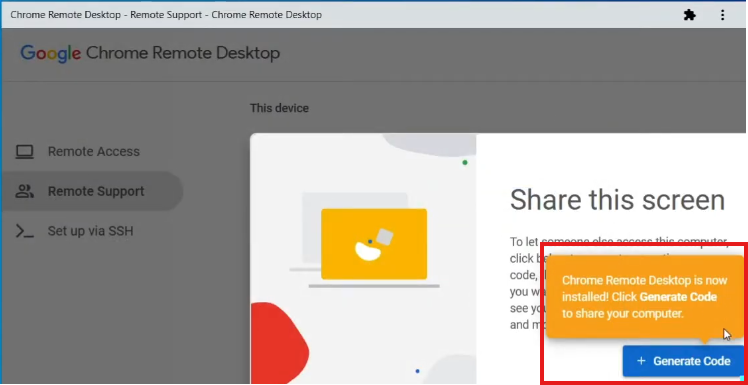
You will not need to start a new session until you receive a phone call from me. During the call, I will ask you to start the session and provide the code on your screen for me to login. This code expires in 5 minutes, so please wait until I am on the phone with you. I will ask you to share your screen and click on Generate Code.
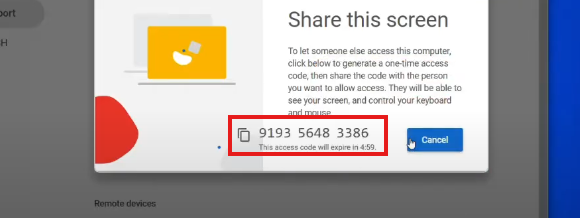
You will need to read me the code displayed on the screen.
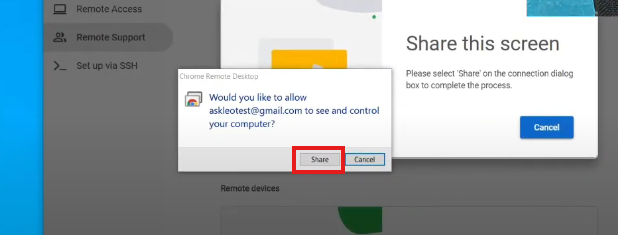
Once I enter the code, you will get a message from me, click Share.
During the session, you will see a toolbar where you can stop the sharing at any time.